 Haulcopy
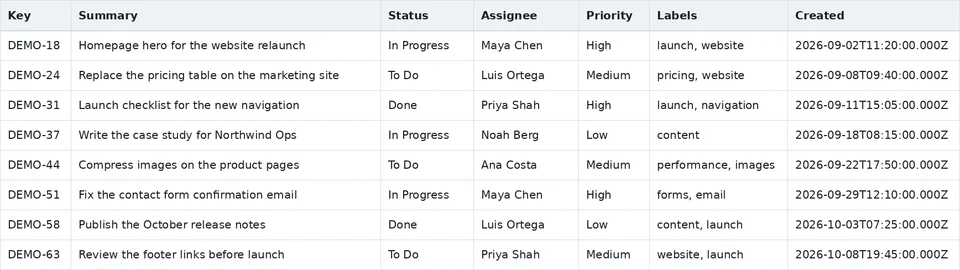
Run your JQL in the work item list. Add the columns you want with the column picker. Visible fields follows this list, so set it first.
Haulcopy / Guides / CSV export
Checked against Atlassian docs and a real Jira Cloud export on 17 Oct 2026
Jira CSV export: all fields or visible fields?
Short answer
“CSV - visible fields” exports the columns in your list, plus a few ID columns. “CSV - all fields” exports every field and is slower. Add the columns you need, pick visible fields, then open the file as UTF-8.
Which option fits you
| Your situation | Pick |
|---|---|
| You need a few known columns | “CSV - visible fields”, after adding the columns |
| You need comments or every custom field | “CSV - all fields” |
| You will open the file in Excel | Either, then import as UTF-8 (step 5) |
| Characters look garbled | Re-import as UTF-8 (step 5) |
| More than 10,000 work items | Split the search |
| You want an .xlsx file | Not a CSV option. See export Jira issues to Excel |
Export a CSV step by step
Select the … menu at the top right of the search, then Export.
The menu shows “CSV - visible fields”, “CSV - all fields”, “Excel CSV - visible fields” and “Excel CSV - all fields”.
Atlassian’s docs still call visible fields “current fields”, and list “filter fields” when you export a saved filter. Atlassian warns that all fields exports are slow and produce large files.
“XLSX - form data” is for Jira forms; see how to export Jira issues to Excel.
In our test, a small export showed “Export complete” and downloaded right away, with no delimiter or encoding dialog. Atlassian says the export runs in the background and sends an in-product notification with a download link when it is ready.
One Cloud export holds up to 10,000 work items; on Data Center the default is 1,000 (why exports stop at 1,000).
Jira writes CSV files in UTF-8. Atlassian says older Excel versions read them as ANSI, which garbles accents and symbols. Our two test files had no byte order mark, the hint some Excel versions need.
Atlassian’s first advice is to skip the file: use Open in Microsoft Excel above the search, because exported CSVs may execute macros.
If you need the file, in Excel choose Data, From Text/CSV, set File origin to 65001: Unicode (UTF-8), then Load. In LibreOffice, pick Unicode (UTF-8) as the character set. Atlassian’s other fix: in Notepad, Save As with UTF-8 with BOM. Avoid double clicking the file.
Atlassian’s KB says a custom field with no value is left out of the CSV, and suggests a default value. Our “CSV - all fields” test on 57 work items kept 47 columns that were empty in every row. Check your own file before relying on either.
What each option gave us
| “CSV - visible fields” | “CSV - all fields” | |
|---|---|---|
| Work items | 20 | 57 |
| Columns | 14 | 83 |
| Extras we did not pick | Issue Type, Issue key, Issue id, Assignee Id, Reporter Id | Custom fields, empty ones included |
| Multi value fields | Not tested | “Labels” appeared as two columns |
Comments come out in “CSV - all fields”, each in its own Comment column, per Atlassian. Attachments can’t be bulk downloaded; only their URLs export.
Dates stay text in these files. For that, see fix Jira dates and numbers that land as text.
How Haulcopy exports CSV
Haulcopy is a Jira Cloud app that exports a JQL search to CSV, Excel or PDF.
- CSV files are UTF-8 with a byte order mark, the same fix Atlassian suggests for Excel, and comma separated.
- Multi value fields stay in one cell, separated by a comma and a space.
- Key is always the first column; at most 50 columns.
- Above 10,000 issues, the export is split into files of up to 10,000.
- Up to 1,000 schedules. Your data stays in Atlassian; Haulcopy has no servers of its own.
Haulcopy is coming to the Atlassian Marketplace. Email support@haulcopy.com and we will tell you the day it is live.
FAQ
Is “visible fields” the same as “current fields”?
Yes. The menu says “CSV - visible fields”; Atlassian’s docs still say current fields.
Why are some custom fields missing?
Atlassian says fields with no value are left out and suggests a default value. In our all fields test, empty columns stayed, so check your own file.
How do I export comments?
Use “CSV - all fields”. Each comment gets its own Comment column.
Why do I see strange characters in Excel?
Excel read the UTF-8 file with the wrong encoding. Import it with File origin set to UTF-8.
How many work items can I export?
Up to 10,000 per export. For more, split the search by created date.
Does Jira export .xlsx?
There is no native .xlsx of your columns. Use a CSV export or Open in Microsoft Excel. “XLSX - form data” holds one form’s responses plus your selected columns.
Sources: Atlassian docs and our own export, listed below. Checked 17 Oct 2026.
- Export search results (Atlassian): option names, “currently visible fields”, “filter fields”, form data, the macro warning, and Open in Microsoft Excel.
- How to export issues from Jira Cloud in CSV format (updated 20 Feb 2026): UTF-8, older Excel reading ANSI, comments in separate columns, no bulk attachment download.
- Export over 10,000 work items in Jira Cloud: the 10,000 cap, slow all-fields files, and the background export with an in-product notification.
- Blank columns in the queue are not exported in CSV (updated 25 Sep 2025): empty custom fields left out.
- CSV files garbled when opened by Excel (updated 26 Sep 2025): Excel before 1610, Notepad UTF-8 with BOM, File origin UTF-8.
- Import or export text files (Microsoft): From Text/CSV.